Visual Maimai's Interface
TIP
本文较长,推荐按照旁边的目录来快速阅读或者找到你所需要了解的地方。 This article is a bit long,I recommend following the list to find what do you need.
下载完Visual Maimai并运行后,你会看到以下的页面:
When you running Visual Maimai,you will see this interface: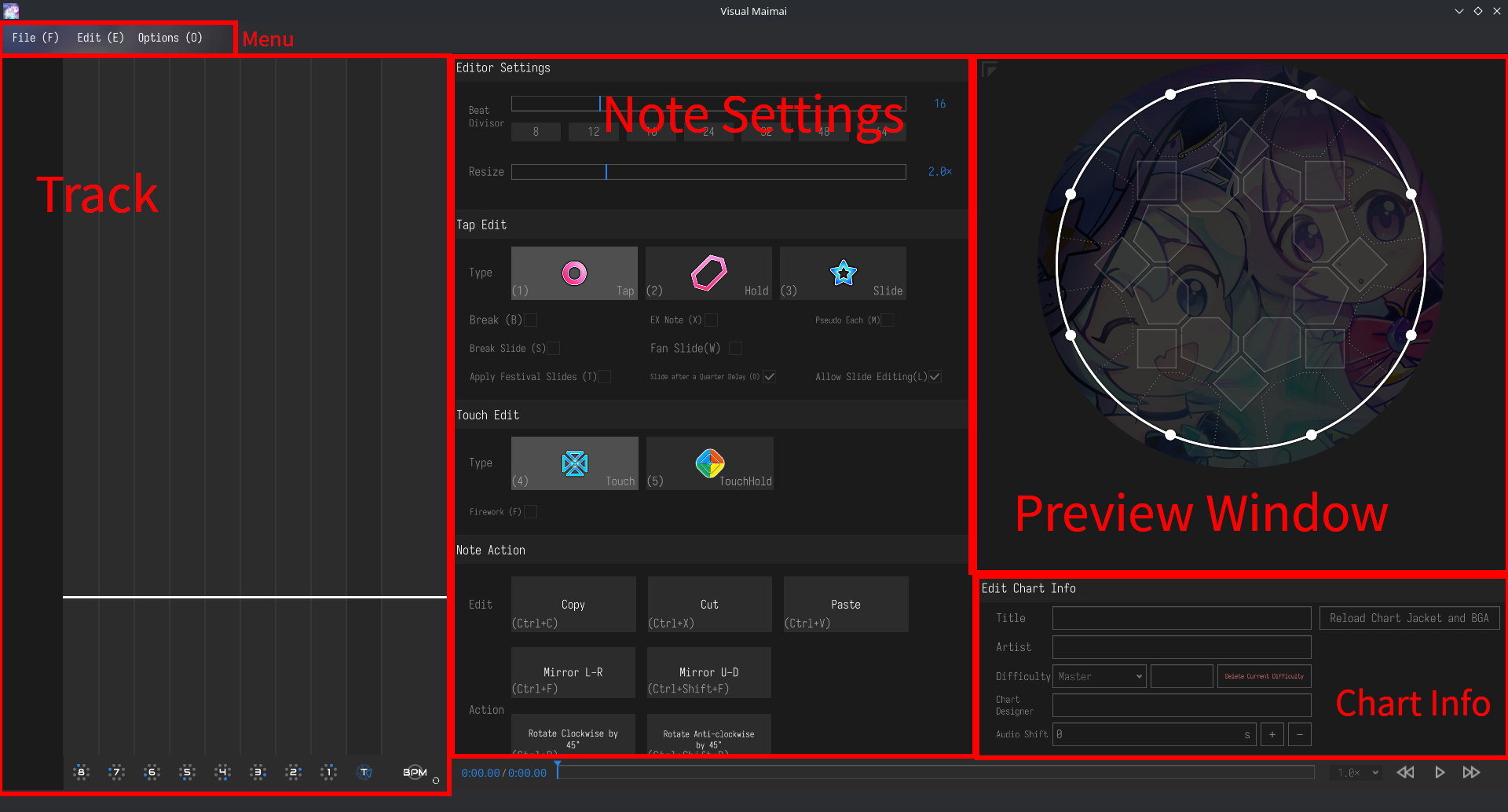 我们分区域讲解功能。
We'll explain it each area.
Menu
菜单区域分三个选项,分别是:文件、编辑、选项。
The Menu area have 3 options:File,Edit,Options.
File
点击文件选项,你可以看到下面的菜单:
In file options,you can see these: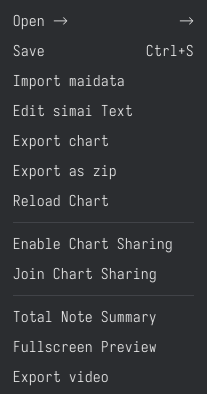
Open
打开的功能可以调出文件选择器里面选择音乐文件,如果选择的文件所属文件夹内有pv.mp4,则会自动把BGA导入谱面;如果选择的文件所属文件夹内有maidata.txt,则会自动将谱面导入Visual Maimai,可在轨道区域里面看到。
"Open" only can choose song file (MP3/OGG),if the song file in the folder where there is maidata.txt or pv.mp4,Visual Maimai will automaticlly import the chart or PV.
同时,如果你没有导入音乐文件,Visual Maimai将无法制作谱面文件(无法在轨道区域内创建note)
And,if you didn't import the song file,you'll can't place note at the track.
Save
顾名思义,可以将谱面文件以maidata的格式保存在maidata.txt,同时也会在chart.json里面保存谱面的元数据(Metadata)
As the name implies,it can save chart by maidata,save to maidata.txt,and also save the metadata at chart.json.
Import maidata
如果你已经有了一份maidata.txt文件,那么可以通过该功能把谱面导入Visual Maimai并进行编辑。
If you already have a maidata.txt file,then you can import charts by this feature.
Export chart
将谱面导出为maidata文件,没有BGA也没有封面,可以直接导入Majdata以进行视频录制。
Let chart export as maidata,no PV and no cover,can import to Majdata directly to record the chart video.
Export as zip
可以将谱面导出为zip格式,可以自行修改后缀名为adx以载入AstroDX以进行游玩。
It can export charts as ZIP file,you can change the extension to ADX for load to AstroDX for play.
重载谱面文件
Enable/Join Chart Sharing
1.3.0版本新功能,可以通过内网(或者内网穿透)以与其他谱面制作者协作创作谱面。 New ferature of 1.3.0,Can share the charts by intranet to collaborative create charts.
Total Note Summary
可以统计谱面内有多少Note,如下图:
Can summary how many notes do the charts have,example this: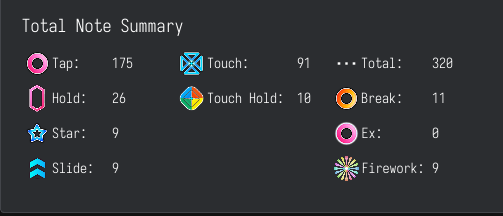
Fullscreen Preview/Export Video
可以直接在Visual Maimai内全屏预览谱面,第二个可以导出视频。 Can previev charts at Visual Maimai for fullscreen,the second one can export the chart video.
Edit
点击编辑选项,你可以看到下面的菜单:
In edit opitions,you can see this: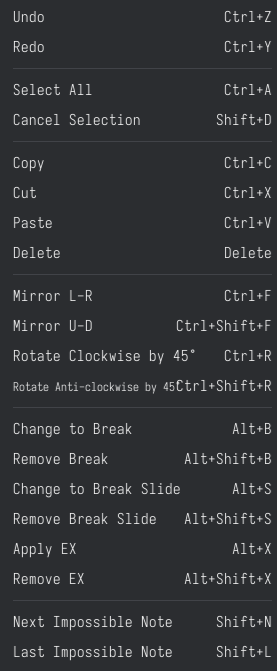
Undo/Redo
可以把操作回退到上一步,或者把回退的操作恢复。
Select All/Cancel Selection
可以把在轨道区域内的所有note全部选中,或者取消选中。
It can select all notes where in the track,or cancel selection.
Copy/Cut/Paste/Delete
可以将你选中的note复制到VM自带的剪切板(剪切为将已经写上的Note删掉并复制),选择位置后粘贴。选中的地方可以按DEL删除。
It can let the selected note copy to copyboard,(Cut is remove and copy),then choose a place to paste. You can press DEL to remove notes if it's selected.
Mirror L-R/U-D、Rotate (Anti-)clockwise by 45°
- Mirror
将选中的Note左右/上下翻转,不保留未翻转前的note
Let the note you selected mirror for left-right/up-down,don't stay the note beforce mirrored
例如:你写了一个8-7-6-5-4-3-2-1的B圈,上下翻转之后顺序就是:1-2-3-4-5-6-7-8
For example:you writed a 8-7-6-5-4-3-2-1,after mirror U-D is:1-2-3-4-5-6-7-8 - Rotate
将选中的音符顺时针/逆时针旋转45°,不保留旋转前的note
let the note you selected rotate for (anti-)clockwise by 45°,don't stay the note beforce rotated 例如:你写了一个8-7-6-5-4-3-2-1的B圈,顺时针之后顺序就是:1-8-7-6-5-4-3-2。 For example:you writed a 8-7-6-5-4-3-2-1,after rotate for clockwise by 45° is:1-8-7-6-5-4-3-2
Change to/Remove Break
绝赞就是Break,可以给谱面增加1%的同步率,拍下之后有特殊音效。转换为绝赞后,Note会变成橙黄色(不同于双押) 。
Break can add 1% acc to the chart,when you tap it,it have a special effect. after change to break,note will change color to orange.
Apply (Remove) EX
保护套可以让Note只有两个判定:非常完美(Critical Perfect)和错误(Miss),一般在B圈里面使用,可以套在绝赞(Break)上 EX can let note have 2 judge:Critical Perfect and Miss, it also useable at Break.
Next/last Impossible Note
Visual Maimai自带无理检测,假设你写了一个2-3-4的三押,或者是5-6,3-2长条,4绝赞Tap(举例为宴琪露诺),那么就会在轨道区域旁提示,同时也可以在这里找。
Visual Maimai is have Impossible check,for example:you writed a 2-3-4 triple tap,then it will tip you aside of track,also you can find impossible at here.
Opitions
点击选项菜单,可以看到下面的菜单:
In file options,you can see these: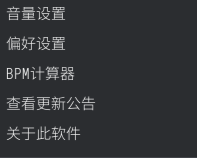
Volume Settings
点开之后,会打开首选项,可以调整各个Note的音效音量、音乐音量、特效音量等。
Tap it,it will open prefernces,you can change every note's effect volume,song volume,special effect volume etc.
Preference Settings
点开之后,会打开首选项,可以调整Tap/Touch的速度、轨道排列、频谱显示、节拍线对齐、无理检测等等。
Tap it,it will open prefernces,you can change speed of Tap/Touch,note alignment,waweform etc.
BPM Calculator
可以通过按左键打节拍的方式算出BPM。 Can check BPM by tapping LMB.
Update Notice
可以看到这个版本的最新功能,以及移除了什么东西。 It can check something new about this version,and who is removed(?wtf).
About this software
显示了Visual Maimai的Stuff们,没有他们就没有Visual Maimai。 There is all stuffs of Visual Maimai,they are maker about Visual Maimai.
I am because you are.
---- Ubuntu
Note Info
往中间看,可以看到Note的编辑区域。
The note info at the middle.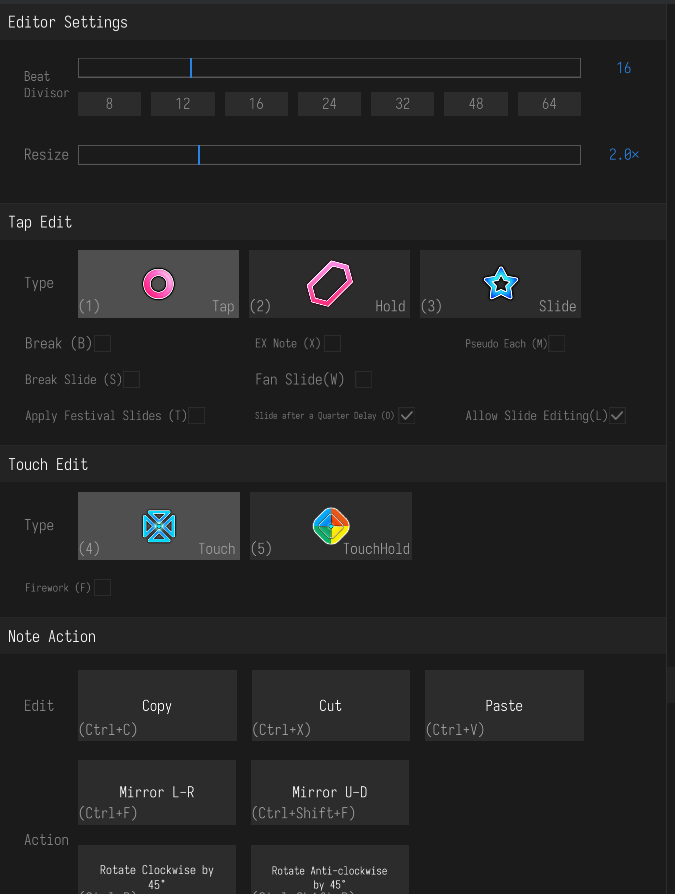
我们一栏一栏看。
We'll explain it each area.
Editor Settings
在这里面,可以看到分音与缩放滑条。
In here,we can check beat divisor and resize.
Beat Divisor
NOTE
由于写作者对乐理知识不全,需要他人辅助编辑该条目。 BECAUSE IDK A LOT OF MUSIC,SO I NEED SOME HELP.
分音其实就是音乐的小拍,指一个拍子里面有多少分拍。
Resize
一般用不到,但是如果你选的分音过高(32~64),你也许需要调整缩放。
Often useless,but if the beat divisor is too high (32-64),you may need to change it.
Tap Edit
在这里可以选择你需要放置的键盘类Note,同时进行一些设置。
You can choose the Tap note you want to place,and change something.
Tap
这是最简单也最基本的Note,在外键可以直接拍,也可以在内屏特定的判定区域触碰。
This is most basic's note,you can tap it at key,or on the screen.
在写谱时,可以直接在轨道区域点击对应的轨道以放置Note。
You can tap the track to pplace note.
Hold
这也是特别基本的Note,在外键可以直接拍并长按,也可以在内屏特定的判定区域触碰并长按。
This is also a basic note,you can tap and hold it at key,or on the screen. 在写谱时,需要在轨道区域先在需要放Note的地方点击一下,结束位置再点一下,不支持跨轨道。
You need to place a startpoint,then place a endpoint. It can't cross the track
Slide
这是舞萌的自创Note,在外键可以直接拍,但是需要沿着箭头在内屏滑动,也可以在内屏特定的判定区域触碰并沿着箭头在内屏滑动。
You can tap it at key,and need to slide the arrow. 在写谱时,需要在轨道区域现在需要放Note的地方点击一下,结束位置再点一下,在预览窗口内滑动鼠标以设定滑动轨道。
You need to place a startpoint,then place a endpoint. Set a slidetrack at preview window.
Break(Slide)
绝赞可以给Tap、Hold、Slide(箭头绝赞使用绝赞星星)使用。绝赞就是Break,可以给谱面增加1%的同步率,拍下之后有特殊音效。转换为绝赞后,Note会变成橙黄色(不同于双押)。
Break can use for Tap,Hold,Slide (Slide arrow using "Break Slide"),it can add 1% acc for the charts.
EX
保护可以给Tap、Hold使用,保护套可以让Note只有两个判定:非常完美(Critical Perfect)和错误(Miss),一般在B圈里面使用,可以套在绝赞(Break)上
EX can use for Tap or Hold,EX can let note have 2 judge:Critical Perfect and Miss, it also useable at Break.
Pseudo Each
伪双押可以写出来一个双押而没有双押提示,适用于Tap、Hold。
Pseudo Each can write a double tap are not have each tip.
Fan Slide
Wifi星星可以把星星从一条Slide改成覆盖多个判定区的扫屏,宴牛奶猫用的较多(在Let's 牛乳 Dance后的一段)
Fan Slide can make a Slide cover lots of judge area.
Apply FESTiVAL Slides
选上这个选项后,可以把原本的只能绕弯的Slide改成可以多次折返的Slide。
It can let Slide muitiple folds. (WHO IS FUCKING WRITED 4pp1/6qq1!!!!!!!!)
Slide after a Quarter Delay
这个是 maimai 的特性,星星启动拍
默认为 1/4 拍,也就是当星星头拍下时间隔一个四分音星星才会启动。
在官谱中除特殊演出、特殊效果外,基本不会改变星星启动拍。
This is Maimai's speciality. It's often a quarter delay to start the Slide arrow.
IMPORTANT
新手写谱不建议乱改启动拍,一般保持开启即可。
I suggest greenhands don't change the delay.
Allow Slide Editing
开启后对着星星点击鼠标中键可以选中星星进行修改。
If it's allowed,tap MMB,you can edit the Slide.
Touch Edit
Touch是在maimaiDX(熊代)的新增音符,可以在内屏的判定区内设置。由于一个手可以覆盖大部分的判定区,所以没有无理(除非Tap+Touch)。
Touch is a new note,it added at DX version.
Touch
这是在熊代新加入的Note,可以在预览窗口内编辑。
Touch is a new note,it added at DX version. You can edit it at Preview Window.
TouchHold
这是Simon在熊代新加入的Note,可以在预览窗口内编辑。一般放在最中间的判定区。
This is a new Simon a new note added at DX version,it can edit at Preview Window,but you also need to place a endpoint.
Firework
只适用于Touch Note的特效,在触碰/长按完成后会以该Touch为核心放出特效,一般用于TouchHold。
A special effect only useable for Touch note,after touch/touchhold it will play a special effect.
Note Action
这一栏可以编辑Note。
You can edit note at here.
Copy/Cut/Paste/Delete
可以将你选中的note复制到VM自带的剪切板(剪切为将已经写上的Note删掉并复制),选择位置后粘贴。选中的地方可以按DEL删除。
It can let the selected note copy to copyboard,(Cut is remove and copy),then choose a place to paste. You can press DEL to remove notes if it's selected.
Mirror L-R/U-D、Rotate (Anti-)clockwise by 45°
- Mirror
将选中的Note左右/上下翻转,不保留未翻转前的note
Let the note you selected mirror for left-right/up-down,don't stay the note beforce mirrored
例如:你写了一个8-7-6-5-4-3-2-1的B圈,上下翻转之后顺序就是:1-2-3-4-5-6-7-8
For example:you writed a 8-7-6-5-4-3-2-1,after mirror U-D is:1-2-3-4-5-6-7-8 - Rotate
将选中的音符顺时针/逆时针旋转45°,不保留旋转前的note
let the note you selected rotate for (anti-)clockwise by 45°,don't stay the note beforce rotated 例如:你写了一个8-7-6-5-4-3-2-1的B圈,顺时针之后顺序就是:1-8-7-6-5-4-3-2。 For example:you writed a 8-7-6-5-4-3-2-1,after rotate for clockwise by 45° is:1-8-7-6-5-4-3-2
Preview Window and Edit Chart Info
Preview Window
可以直接在这里面放置Note,Slide可以在这里面滑动,如果音乐文件夹内有pv.mp4,那么会自动将PV导入谱面内,并且在播放谱面时会同步播放PV。
You can put note at here,you need to place slidearrow at here. If the floder have pv.mp4,it will import PV.
Edit Chart Info
在这里可以编辑谱面的元数据,在某些时候会展示。
由于大部分都易懂,挑选一些需要解释的。
You can edit the chart's Metadata at here,sometimes you can see these.
We'll talk a little about it.
Difficulty
难度旁边有一个下拉菜单,点击后可以看到从Easy(初到真代)到Re:Master的难度选择,如果你已经写好了一个难度的谱面,则需要在这里更改一个难度以创作其他难度谱面。
It have a menu,in the menu you can see from Easy(Only useable at maimai to maimai FiNALE) to Re:Master's difficulty selection.
Audio Shift
如果你的屏幕与声音有一定的偏移,可以在这里调整offset。
If your screen have some offset,you can change it at here.
Track
从中间往左看,可以看到轨道区域。
The Track at the left.
从左看下面的8~1代表的是按键序号,T代表的是Touch类Note轨道,旁边的BPM在导入乐曲之后会有显示,你需要自己调整,可以在Songbpm查找你所准备使用的音乐的BPM。
From 1-8 is key number,T is Touch note track,the BPM aside when you imported the song,you need to change it.You can check BPM at Songbpm.